
10 Tricks & Tools To Deep Clean Your Windows PC
Deep Clean Your Windows PC: 10 Professional Tricks and Tools
Is your Windows PC feeling sluggish? Limited storage space and slow system startup can be frustrating, but with a few professional tricks and tools, you can free up your storage drive and get your system running smoothly again. Here are ten tips to help you deep clean your Windows PC.
1. Check Memory Utilization
Start by checking your memory utilization. Go to Settings > System > Memory to see an overview of your system drive's total utilization, including temporary files and installed apps. This will help you identify areas where you can free up space.
2. Use Windows 11 Cleanup Functions
Windows 11 has built-in cleanup functions that can help you free up storage space. Go to Settings > System > Storage and click on Cleanup recommendations. This will show you the storage space occupied by downloads, the recycle bin, and previous Windows installations. You can also find large or unused files and unused apps to delete.
3. Free Up Storage Space Automatically
Enable Storage Sense in Settings > System > Storage to let Windows automatically clean up temporary system and app files. You can configure it to run daily, weekly, or monthly, and set it to delete files from the recycle bin and download folder after a specified period.
4. Relocate Standard Storage Locations
If you have an additional SSD or hard drive, you can move personal files to the other drive using Windows Explorer. You can also change the storage location of default folders in Settings > System > Storage > Advanced storage settings > Where new content is saved.
5. Change Storage Location for Apps
For apps from the Microsoft Store, you can move them to another drive without reinstalling them. Go to Settings > Apps > Installed apps, click on Move in the three-dot menu for the desired app, and select the target drive.
6. Clean Up Discs
Although Disk Cleanup is considered outdated, it is still available in Windows 11. Start the tool by searching in the Start menu or pressing Win+R, entering cleanmgr, and clicking OK. Select the drive you want to clean up and tick the areas you want to delete.
7. Delete Browser Data
Web browsers generate data on your hard drive, including cached images and data. In Microsoft Edge, go to Settings > Privacy, search, and services > Choose what to clear. Select the time range and the data you want to delete.
8. Optimize Autostart
Remove programs that you rarely use from autostart to improve system performance. Use the Task Manager (Ctrl+Shift+Esc) to deactivate programs from autostart via the context menu.
9. Use Extra Tools
Additional tools like Bleachbit and Ccleaner can help you delete unnecessary files and optimize your system. Familiarize yourself with the functions before deleting anything irretrievably.
10. Analyze Drives
Tools like Treesize Free and Windirstat can help you analyze your drives and detect large files that you may no longer need. Use these tools to identify space wasters and free up storage space.
By following these tips, you can deep clean your Windows PC and keep it running smoothly. Regular maintenance and cleanup will ensure that your system remains efficient and responsive.
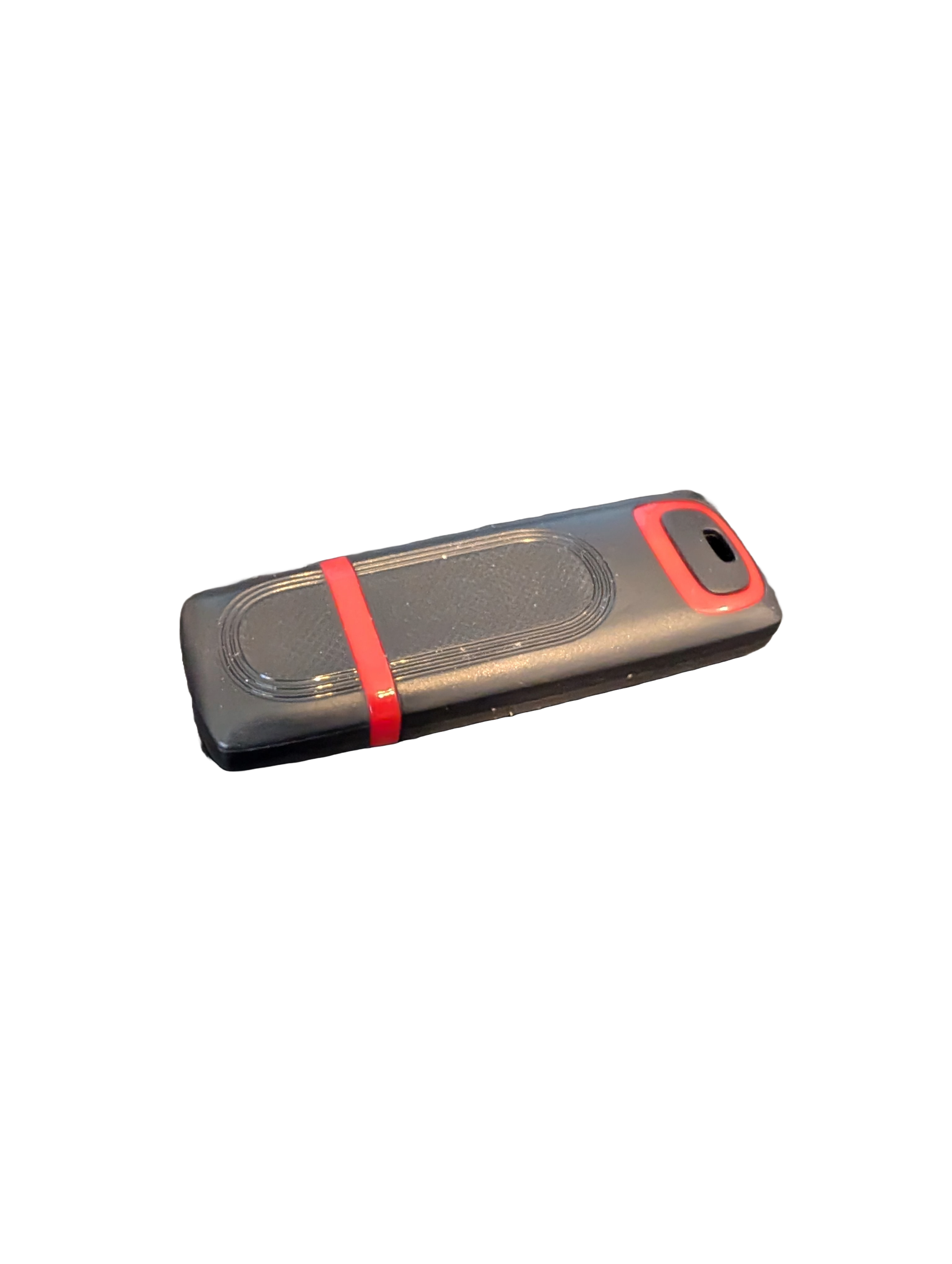
🖥️ Give Your Slow Windows PC a Fresh Boost
This plug‑and‑play Windows Computer Tune‑Up USB Drive is a complete performance‑restoration toolkit for desktops, laptops, and tablets. No installation required — simply plug it in and run the tools directly from the USB.
Perfect for speeding up slow computers, removing junk software, fixing performance issues, and cleaning malware.
🔧 What’s Included (Tools & Utilities)
Your USB drive comes preloaded with a curated suite of essential PC maintenance tools:
Windows manual update utility
Software removal & cleanup tools
Startup optimizer
Virus & malware scan/removal utilities
Disk cleanup utility
Defrag tool
Windows performance tweak utility
Registry cleanup & optimization
Note: USB brand and appearance may vary. Self‑Updating: Tools automatically stay current when connected online.
🚀 Why This Tune‑Up USB Is Better
✔ No installation required
Runs directly from the USB — ideal for damaged or slow systems.
✔ Safe, portable, and beginner‑friendly
Includes step‑by‑step instructions and a full tune‑up checklist.
✔ Works on all modern Windows PCs
Compatible with Windows desktops, laptops, and tablets.
✔ Fixes the most common PC problems
Slow startup, cluttered software, malware infections, lag, freezing, and more.
🛠️ Ideal For
Slow or aging computers
Family PCs that need regular cleanup
Students, home offices, and small businesses
Technicians who want a portable toolkit
📦 What You Get
1× Preloaded Tune‑Up USB Drive
Full instructions + tune‑up checklist
Lifetime updates to included tools
THERE IS NO GUARANTEE THIS PRODUCT WILL FIX YOUR SPECIFIC ISSUE OR IMPROVE PERFORMANCE