
How To Change The Boot Drive On Your Windows PC
Changing the boot drive on your Windows computer can be a valuable upgrade, especially if you’re looking to switch to a faster solid-state drive (SSD) or replace a failing hard disk drive (HDD). Let’s dive into the process step by step:
Understanding What a Boot Drive Is
Before we get into the nitty-gritty, let’s clarify what a boot drive is and why it’s crucial for your computer. The boot drive contains the operating system necessary to start up your PC. It could be a hard drive, SSD, CD-ROM drive, or even a USB flash drive. When you power on your computer, the system BIOS (Basic Input/Output System) searches for the boot drive to load the operating system. Once found, the BIOS loads the boot sector, which contains the boot loader. The boot loader then kicks off the operating system, and voilà—your computer springs to life!
Preparation Before Changing the Boot Drive
Backup Important Data: First things first, back up any critical data from your current boot drive. You don’t want to lose anything during the process.
Ensure Power Stability: Make sure your computer is plugged in or has a charged battery. We wouldn’t want any unexpected power interruptions during the process.
Steps to Change the Boot Drive
Restart Your Computer: Restart your PC to access the BIOS or UEFI settings. You can usually do this by pressing a specific key during startup (common keys include F2, F8, or Delete).
Enter the BIOS/UEFI Setup: Once you’re in the BIOS or UEFI setup, navigate to the Boot or Boot Order menu. The exact location may vary depending on your motherboard manufacturer.
Locate Boot Options: Look for the list of boot devices. You’ll see your current boot drive (probably the one with your existing OS) and any other connected drives.
Select the New Boot Drive: Use the arrow keys to highlight the drive you want to set as the new boot drive (e.g., your shiny new SSD). Move it to the top of the boot order list. This ensures that the BIOS will check this drive first during startup.
Save and Exit: Save your changes and exit the BIOS/UEFI setup. Usually, you’ll find an option to save and exit. Confirm your choice.
Verify Boot Drive Change: Restart your computer. If all went well, your PC should now boot from the new drive.
Troubleshooting Common Problems
Boot Drive Not Detected: If your new drive isn’t detected, double-check the connections and ensure it’s properly installed. Also, verify that the drive is functional.
System Does Not Boot: If your system doesn’t boot, revisit the BIOS/UEFI settings. Make sure you selected the correct drive as the boot device.
Remember, take your time, and don’t rush through the process. Changing the boot drive is a significant step, but armed with this guide, you’ll be well-prepared! 🚀
Click HERE to view/download a PC BIOS key list.

Restore, repair, or reinstall Windows quickly with this Windows 10/11 Installation & Repair USB Drive. Built for both UEFI and Legacy (MBR) BIOS systems, this bootable USB includes the latest 64‑bit Windows 10 and Windows 11 installation environments (Home – English only) plus a full suite of professional‑grade PC recovery tools.
Whether you're fixing startup issues, recovering lost data, removing malware, or performing a clean reinstall, this USB gives you everything you need in one convenient toolkit.
🔧 Included Tools & Utilities
Windows 10/11 Installation & Reinstallation Tools
Local Account Password Reset Utility (will not work on bitlocker encrypted drives)
Data Recovery & Backup Tools
Antivirus & Malware Removal Tools
Partition Management & Disk Repair
Hardware Diagnostics & Stress Testing
Driver Utility & Boot Repair Tools
Step‑by‑step boot instructions included
💻 Compatibility
Works with UEFI and Legacy (MBR) BIOS
Supports most desktops and laptops capable of running Windows 10 or 11
USB brand and appearance may vary depending on supplier
⚠️ Important Notes
Product keys are NOT included (available separately)
A valid Windows license may be required for installation
This is a repair and recovery tool, not a license key
No product key included (available separately if needed)
THERE IS NO GUARANTEE THIS PRODUCT WILL FIX YOUR SPECIFIC ISSUE
User must have some working knowledge with computer software & hardware. This product is not for beginners
👤 Who This Is For
Perfect for:
PC technicians
DIY computer users
Anyone needing a fast, reliable way to repair or reinstall Windows
Users dealing with malware, boot failures, or corrupted system files
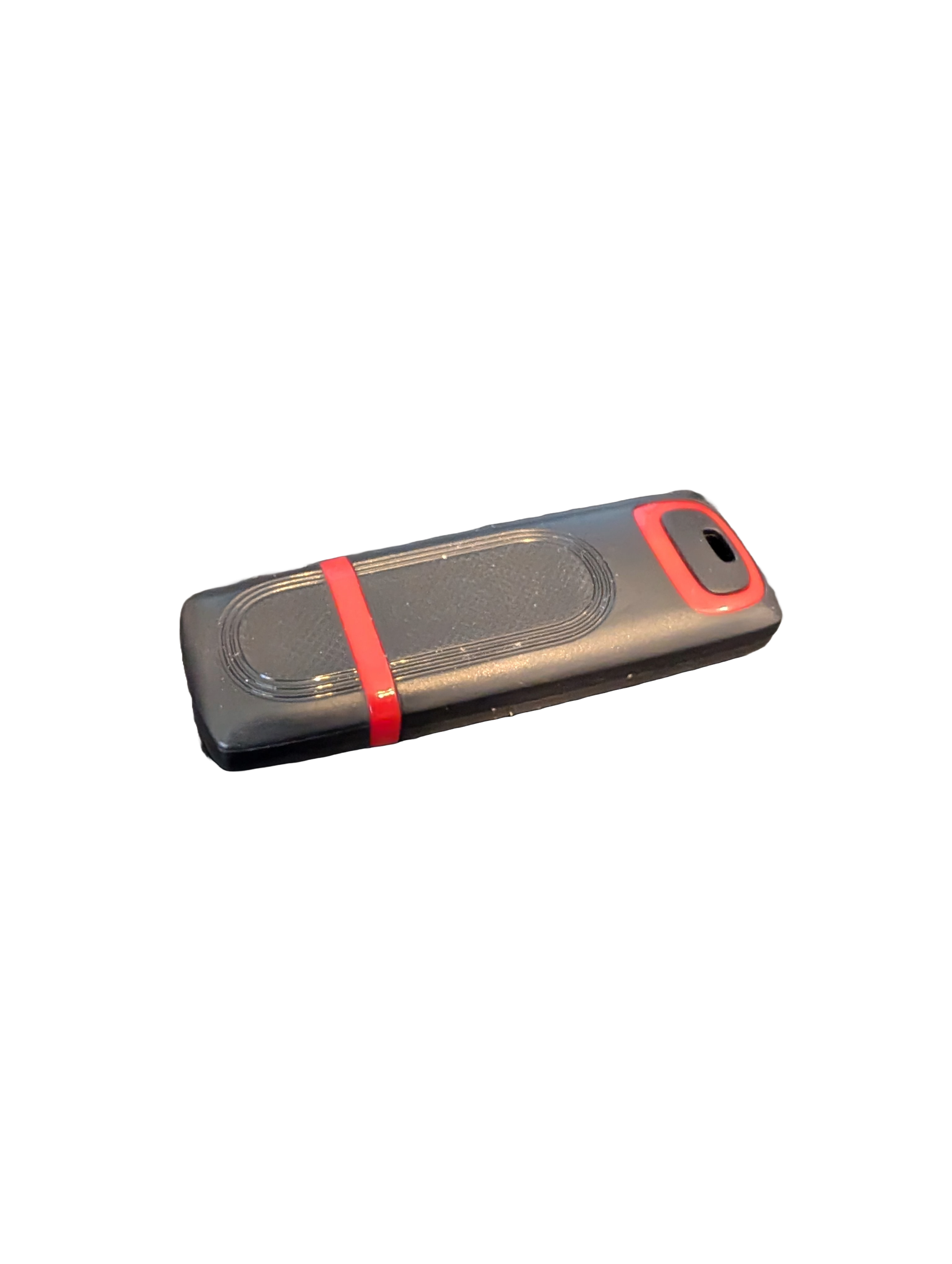
🖥️ Give Your Slow Windows PC a Fresh Boost
This plug‑and‑play Windows Computer Tune‑Up USB Drive is a complete performance‑restoration toolkit for desktops, laptops, and tablets. No installation required — simply plug it in and run the tools directly from the USB.
Perfect for speeding up slow computers, removing junk software, fixing performance issues, and cleaning malware.
🔧 What’s Included (Tools & Utilities)
Your USB drive comes preloaded with a curated suite of essential PC maintenance tools:
Windows manual update utility
Software removal & cleanup tools
Startup optimizer
Virus & malware scan/removal utilities
Disk cleanup utility
Defrag tool
Windows performance tweak utility
Registry cleanup & optimization
Note: USB brand and appearance may vary. Self‑Updating: Tools automatically stay current when connected online.
🚀 Why This Tune‑Up USB Is Better
✔ No installation required
Runs directly from the USB — ideal for damaged or slow systems.
✔ Safe, portable, and beginner‑friendly
Includes step‑by‑step instructions and a full tune‑up checklist.
✔ Works on all modern Windows PCs
Compatible with Windows desktops, laptops, and tablets.
✔ Fixes the most common PC problems
Slow startup, cluttered software, malware infections, lag, freezing, and more.
🛠️ Ideal For
Slow or aging computers
Family PCs that need regular cleanup
Students, home offices, and small businesses
Technicians who want a portable toolkit
📦 What You Get
1× Preloaded Tune‑Up USB Drive
Full instructions + tune‑up checklist
Lifetime updates to included tools
THERE IS NO GUARANTEE THIS PRODUCT WILL FIX YOUR SPECIFIC ISSUE OR IMPROVE PERFORMANCE