
How to Completely Remove Apps and Programs on Windows
Removing unneeded apps from your computer is essential to free up resources and keep things tidy. However, sometimes these apps don't do a great job of cleaning up after themselves when uninstalled. Here’s how you can ensure that no remnants are left behind:
1. Remove Registry Entries
Some apps store data in the registry, including settings and preferences. When you uninstall them, they might not remove this information. To manually delete registry entries:
Press Win + R to open Run, type "regedit" in the text box, and click "OK" to launch the Registry Editor.
Navigate to HKEY_LOCAL_MACHINE\SOFTWARE\ and find the key associated with the uninstalled app. Right-click it and select "Delete."
Be cautious and back up the Windows registry or create a system restore point before making changes to avoid any mishaps.
2. Manually Remove Leftover Folders
Check the following locations for any leftover folders of the uninstalled apps:
Press Win + E to open File Explorer and navigate to "This PC".
Open your installation drive (usually C:) and look in the "Program Files" and "Program Files (x86)" folders.
Also, navigate to %appdata% to open the AppData folder and clean up the Roaming, Local, and LocalLow subfolders.
3. Delete Temp Files
Windows stores launch configurations and cached data in the Temp folder. To manually delete temp files:
Search for "Disk Cleanup" using system search and launch the utility.
Select the drive from which the program was removed and scroll down to tick the "Temporary Files" checkbox.
Click "OK" and confirm by clicking "Delete Files."
Alternatively, open Run and enter %temp% to delete files associated with the uninstalled app directly from the temp folder.
By following these steps, you can ensure that any remnants of uninstalled apps are completely removed, freeing up disk space and keeping your system clean and efficient.
Remember, being cautious and thorough in the cleanup process can prevent issues and optimize your system's performance. Happy tidying!
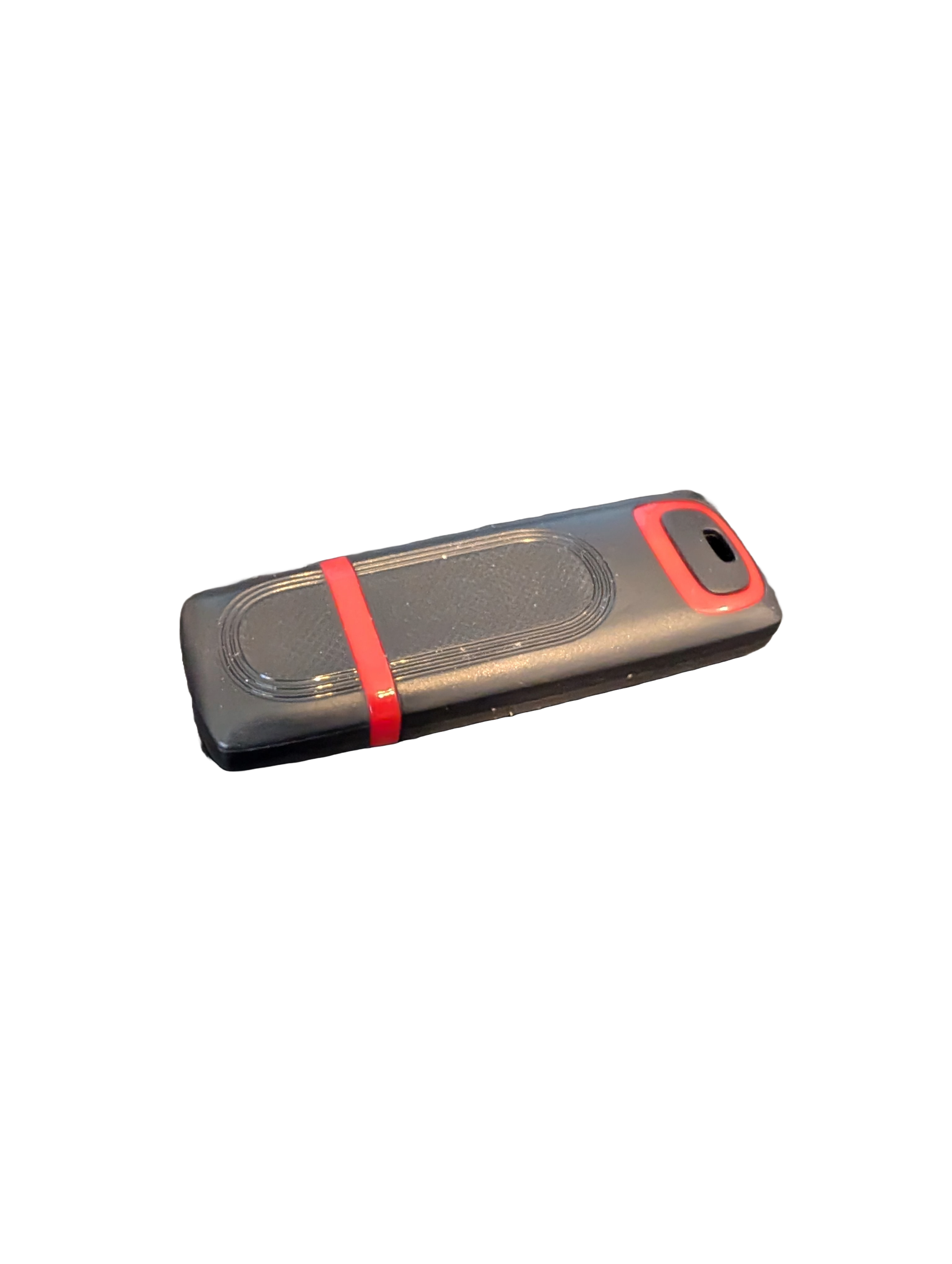
🖥️ Give Your Slow Windows PC a Fresh Boost
This plug‑and‑play Windows Computer Tune‑Up USB Drive is a complete performance‑restoration toolkit for desktops, laptops, and tablets. No installation required — simply plug it in and run the tools directly from the USB.
Perfect for speeding up slow computers, removing junk software, fixing performance issues, and cleaning malware.
🔧 What’s Included (Tools & Utilities)
Your USB drive comes preloaded with a curated suite of essential PC maintenance tools:
Windows manual update utility
Software removal & cleanup tools
Startup optimizer
Virus & malware scan/removal utilities
Disk cleanup utility
Defrag tool
Windows performance tweak utility
Registry cleanup & optimization
Note: USB brand and appearance may vary. Self‑Updating: Tools automatically stay current when connected online.
🚀 Why This Tune‑Up USB Is Better
✔ No installation required
Runs directly from the USB — ideal for damaged or slow systems.
✔ Safe, portable, and beginner‑friendly
Includes step‑by‑step instructions and a full tune‑up checklist.
✔ Works on all modern Windows PCs
Compatible with Windows desktops, laptops, and tablets.
✔ Fixes the most common PC problems
Slow startup, cluttered software, malware infections, lag, freezing, and more.
🛠️ Ideal For
Slow or aging computers
Family PCs that need regular cleanup
Students, home offices, and small businesses
Technicians who want a portable toolkit
📦 What You Get
1× Preloaded Tune‑Up USB Drive
Full instructions + tune‑up checklist
Lifetime updates to included tools
THERE IS NO GUARANTEE THIS PRODUCT WILL FIX YOUR SPECIFIC ISSUE OR IMPROVE PERFORMANCE