When your computer starts taking forever to boot, programs freeze unexpectedly, or web pages load painfully slowly, your first thought might be that it's time to replace it.
Fortunately, many older Windows computers can be dramatically improved without purchasing a brand-new PC. In many cases, a few simple maintenance steps can restore performance and extend the life of your system for years.
In this guide, we'll cover practical ways to speed up an aging Windows computer and explain when repairs or upgrades make more sense than replacement.
1. Disable Unnecessary Startup Programs
Many applications automatically launch when Windows starts.
Over time, these programs consume memory, processor resources, and valuable startup time. The result is a computer that feels sluggish from the moment you turn it on.
How to Check Startup Programs
Press Ctrl + Shift + Esc
Select Task Manager
Click the Startup Apps tab
Disable programs you don't need immediately after login
Focus on software you recognize but rarely use. Leave security software enabled.
Why This Helps
Reducing startup applications often cuts boot times significantly and frees system resources for everyday tasks.
2. Free Up Disk Space
A nearly full drive can hurt performance, especially when Windows needs space for updates, temporary files, and virtual memory.
Remove:
Temporary files
Downloaded installation files
Recycle Bin contents
Unused applications
Duplicate files
Use Storage Sense
Windows includes a built-in feature called Storage Sense that can automatically remove temporary files and manage disk space.
Storage Sense is one of the easiest maintenance tools available and requires almost no effort once configured.
Related Reading: Link to your Storage Sense article.
3. Scan for Malware and Adware
Malware remains one of the most common causes of slow computer performance.
Common warning signs include:
Frequent popups
Browser redirects
High CPU usage
Unwanted software installations
Excessive fan activity
Run:
Windows Security
Microsoft Defender Offline Scan
A reputable second-opinion scanner if necessary
Even a single unwanted extension can noticeably affect system performance.
4. Update Windows and Device Drivers
Outdated software can cause:
Slow performance
Stability issues
Compatibility problems
Security vulnerabilities
Check for:
Windows updates
Graphics drivers
Wi-Fi drivers
Laptop chipset updates
Keeping software current helps ensure your hardware performs as intended.
5. Upgrade to an SSD
If your computer still uses a traditional hard drive (HDD), upgrading to a Solid-State Drive (SSD) is often the single most effective way to improve performance.
Benefits of upgrading to an SSD:
Faster Windows startup times
Quicker program and application launches
Improved file transfer speeds
Reduced system freezing and lag
Better multitasking performance
Lower power consumption in laptops
Increased reliability due to the absence of moving parts
Typical Improvements:
Boot times can drop from several minutes to under 30 seconds
Applications open significantly faster
Web browsing feels more responsive
Overall system performance improves immediately
Signs you should consider an SSD upgrade:
Your PC takes several minutes to start
Programs are slow to open
You hear a spinning or clicking hard drive
Your computer frequently freezes while loading files
Windows updates take an unusually long time to install
For many older Windows computers, an SSD upgrade can extend the usable life of the system by several years and often provides a better return on investment than replacing the entire machine.
6. Increase Available Memory (RAM)
If your computer frequently has multiple browser tabs, video calls, spreadsheets, and applications open simultaneously, insufficient RAM may be causing slowdowns.
Watch for:
Browser freezing
Frequent disk activity
Delayed response times
Applications crashing
Modern systems generally perform better with:
8 GB minimum
16 GB recommended for most users
7. Clean Dust from Fans and Cooling Systems
Physical maintenance is often overlooked.
Dust accumulation can:
Restrict airflow
Increase temperatures
Cause thermal throttling
Shorten component lifespan
Signs your system may need cleaning:
Loud fans
Excessive heat
Random shutdowns
Reduced performance during demanding tasks
A thorough cleaning can improve cooling and restore lost performance.
8. Reduce Browser Clutter
Web browsers are frequently the biggest resource consumers on a PC.
Review:
Installed extensions
Open tabs
Background browser applications
Cached files
Removing unnecessary extensions often provides an immediate improvement in responsiveness.
9. Reset Windows as a Last Resort
If performance problems persist after maintenance, Windows may have accumulated years of conflicting software, corrupted settings, or leftover files.
A reset can often restore a system to near-fresh performance.
Always back up:
Documents
Photos
Email data
Browser bookmarks
Important software licenses
before performing a reset.
When Is It Time to Replace Your Computer?
Even the best maintenance has limits.
Replacement may be worth considering if:
Your system cannot support Windows 11
Parts are failing repeatedly
Repair costs exceed the computer's value
Daily tasks remain frustrating despite upgrades
In many cases, however, upgrading storage, memory, or performing proper maintenance can provide several more years of productive use.
Conclusion
A slow computer doesn't automatically mean it's time to buy a new one.
By reducing startup programs, cleaning unnecessary files, removing malware, upgrading to an SSD, increasing RAM, and performing regular maintenance, many older Windows computers can continue performing well for years.
Before replacing your PC, take the time to evaluate these optimization steps. A modest upgrade or maintenance session may provide all the speed improvement you need.
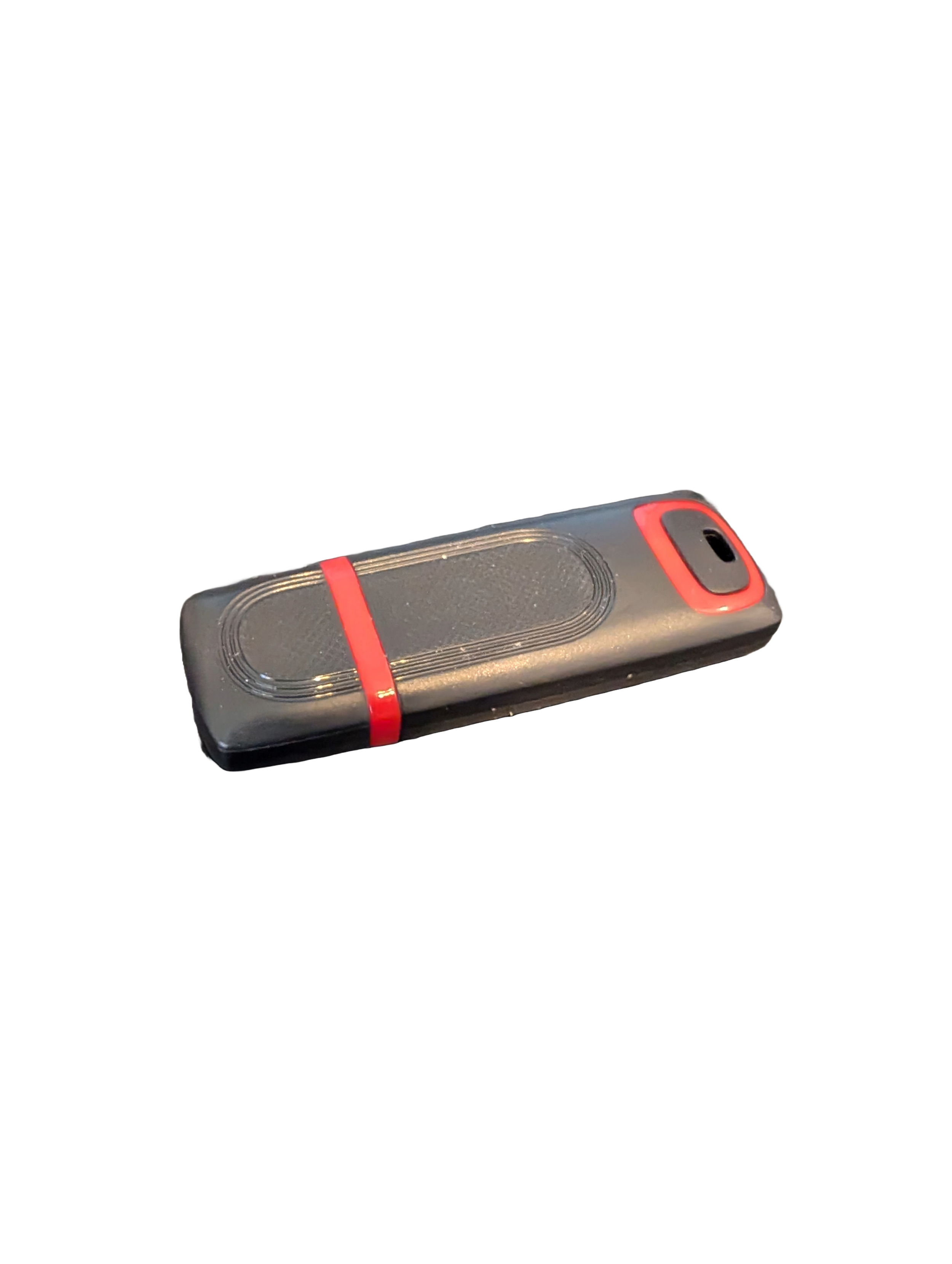
🖥️ Give Your Slow Windows PC a Fresh Boost
This plug‑and‑play Windows Computer Tune‑Up USB Drive is a complete performance‑restoration toolkit for desktops, laptops, and tablets. No installation required — simply plug it in and run the tools directly from the USB.
Perfect for speeding up slow computers, removing junk software, fixing performance issues, and cleaning malware.
🔧 What’s Included (Tools & Utilities)
Your USB drive comes preloaded with a curated suite of essential PC maintenance tools:
Windows manual update utility
Software removal & cleanup tools
Startup optimizer
Virus & malware scan/removal utilities
Disk cleanup utility
Defrag tool
Windows performance tweak utility
Registry cleanup & optimization
Note: USB brand and appearance may vary. Self‑Updating: Tools automatically stay current when connected online.
🚀 Why This Tune‑Up USB Is Better
✔ No installation required
Runs directly from the USB — ideal for damaged or slow systems.
✔ Safe, portable, and beginner‑friendly
Includes step‑by‑step instructions and a full tune‑up checklist.
✔ Works on all modern Windows PCs
Compatible with Windows desktops, laptops, and tablets.
✔ Fixes the most common PC problems
Slow startup, cluttered software, malware infections, lag, freezing, and more.
🛠️ Ideal For
Slow or aging computers
Family PCs that need regular cleanup
Students, home offices, and small businesses
Technicians who want a portable toolkit
📦 What You Get
1× Preloaded Tune‑Up USB Drive
Full instructions + tune‑up checklist
Lifetime updates to included tools
THERE IS NO GUARANTEE THIS PRODUCT WILL FIX YOUR SPECIFIC ISSUE OR IMPROVE PERFORMANCE