Windows Task Scheduler: Hidden Background Tasks That Could Be Slowing Your PC Startup
If your Windows 11 PC feels sluggish the moment you turn it on, the culprit might not be your hardware — it could be Task Scheduler quietly running dozens of background jobs you’ve never heard of. Many of these tasks are harmless, but others can slow down boot times, waste resources, or continue running long after you’ve uninstalled the software that created them.
The good news? You can safely review, disable, and clean up unnecessary scheduled tasks — and in many cases, see a noticeably faster startup.
What Task Scheduler Actually Does
Windows Task Scheduler automates system maintenance: updates, log cleanup, registry backups, and similar background tasks . But Windows isn’t perfect — uninstalling software doesn’t always remove its scheduled tasks, leaving behind “ghost” entries that still run at startup Current page.
You can open Task Scheduler by pressing Windows Key → type “Scheduler” and launching the app . Or, for the classic interface, run Windows + R → taskschd.msc .
Why These Tasks Slow Down Your Startup
Once inside the Task Scheduler Library, you’ll see every scheduled task your PC runs throughout the day — including many that trigger at boot . Some of the worst offenders include:
PowerENGAGE
Overwolf Update Task
Razer Cortex
Duplicate update tasks like BraveSoftwareUpdate and MicrosoftEdgeUpdate
These tasks check for updates, run telemetry, or perform maintenance — often unnecessarily, and often twice.
Right‑click → Disable lets you turn off anything you don’t want running at startup .
What You Should Disable First
When cleaning up scheduled tasks, prioritize:
1. Telemetry & Data Collection Tasks
Microsoft Compatibility Appraiser, ProgramDataUpdater, Consolidator, UsbCeip, KernelCeipTask — these collect usage data and aren’t essential for performance .
2. OEM Bloatware Tasks
HP Assistant, Lenovo Vantage, Dell SupportAssist — these constantly check for updates, offers, or alerts, and can safely be run manually instead .
3. Duplicate or Orphaned Tasks
Search for “File not found” to identify tasks still trying to update software you’ve already uninstalled .
What You Should Never Disable
Some scheduled tasks are critical:
Windows Update
Power Management tasks
SystemRestore
DiskCleanup
Disabling these can cause security issues or break core Windows functionality .
Will This Make Your PC Faster?
You won’t see a massive performance overhaul — but you will likely see:
Faster boot times
Less background stuttering
Fewer unnecessary update checks
Reduced telemetry and data collection
Even a small improvement in responsiveness can make your PC feel noticeably smoother during the first few minutes after startup .
Safety Tip: Disable, Don’t Delete
Never delete scheduled tasks outright. Disabling them allows you to re‑enable anything that causes issues later. Deleting can break software or require complicated recovery steps .
Final Thoughts
Windows 11 is powerful, but it runs far more background tasks than most users realize. Cleaning up Task Scheduler is a safe, effective way to reclaim resources — especially on older systems or PCs that have had lots of software installed over the years.
If your computer feels sluggish at startup, this is one of the easiest optimizations you can make.
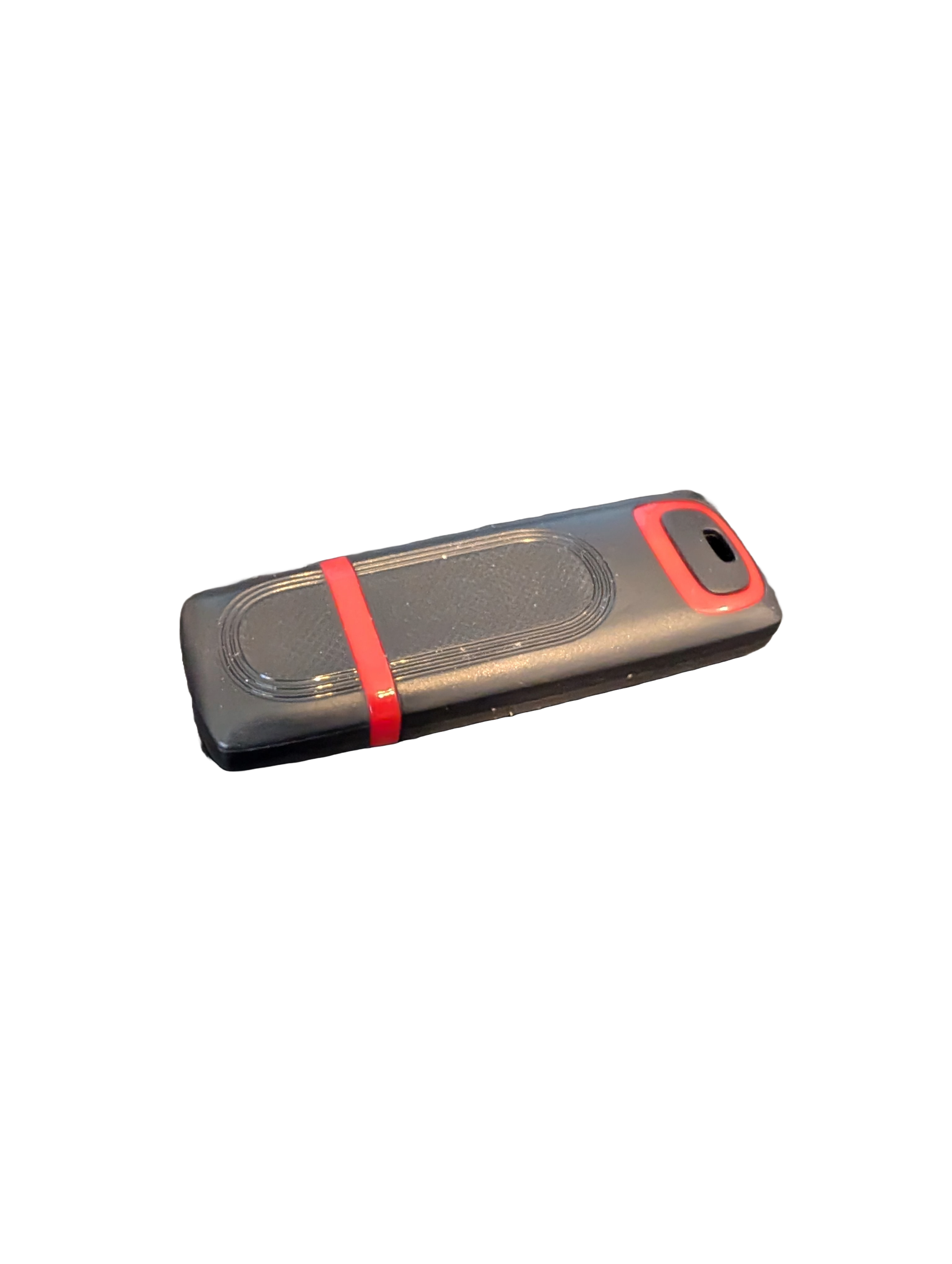
🖥️ Give Your Slow Windows PC a Fresh Boost
This plug‑and‑play Windows Computer Tune‑Up USB Drive is a complete performance‑restoration toolkit for desktops, laptops, and tablets. No installation required — simply plug it in and run the tools directly from the USB.
Perfect for speeding up slow computers, removing junk software, fixing performance issues, and cleaning malware.
🔧 What’s Included (Tools & Utilities)
Your USB drive comes preloaded with a curated suite of essential PC maintenance tools:
Windows manual update utility
Software removal & cleanup tools
Startup optimizer
Virus & malware scan/removal utilities
Disk cleanup utility
Defrag tool
Windows performance tweak utility
Registry cleanup & optimization
Note: USB brand and appearance may vary. Self‑Updating: Tools automatically stay current when connected online.
🚀 Why This Tune‑Up USB Is Better
✔ No installation required
Runs directly from the USB — ideal for damaged or slow systems.
✔ Safe, portable, and beginner‑friendly
Includes step‑by‑step instructions and a full tune‑up checklist.
✔ Works on all modern Windows PCs
Compatible with Windows desktops, laptops, and tablets.
✔ Fixes the most common PC problems
Slow startup, cluttered software, malware infections, lag, freezing, and more.
🛠️ Ideal For
Slow or aging computers
Family PCs that need regular cleanup
Students, home offices, and small businesses
Technicians who want a portable toolkit
📦 What You Get
1× Preloaded Tune‑Up USB Drive
Full instructions + tune‑up checklist
Lifetime updates to included tools
THERE IS NO GUARANTEE THIS PRODUCT WILL FIX YOUR SPECIFIC ISSUE OR IMPROVE PERFORMANCE