Tired of seeing ads for PC cleaners, registry optimizers, and system boosters? The good news is that Windows 11 already includes powerful built-in tools that can help improve storage, performance, and security without installing additional software.
For many years, Windows users relied on third-party cleanup applications to keep their PCs running smoothly. However, modern Windows 11 systems now include several integrated tools that handle common maintenance tasks more effectively and safely than many paid alternatives. According to a recent analysis by MakeUseOf, Windows 11 provides native tools for storage cleanup, startup optimization, and system security that eliminate much of the need for external cleanup software. [Windows 11...s required]
If you're looking for a simple way to maintain your computer in Sherwood Park, Edmonton, or surrounding areas, these built-in Windows features are an excellent place to start.
Why You Should Avoid Most Third-Party PC Cleaning Software
Many "PC optimization" programs promise dramatic speed improvements, registry fixes, and performance boosts. In reality, these tools often:
Display aggressive advertising
Run unnecessary background processes
Consume additional system resources
Require paid subscriptions
Sometimes create more problems than they solve
Windows 11 now includes the core maintenance features most users actually need, making many third-party cleanup utilities redundant. [Windows 11...s required]
1. Storage Sense Automatically Removes Junk Files
One of the most useful built-in maintenance features in Windows 11 is Storage Sense.
This automated cleanup tool can remove:
Temporary files
Recycle Bin contents
Old Downloads folder items
Unused cloud-synced files
Other unnecessary storage clutter
The best part is that Storage Sense can run automatically on a schedule, helping maintain free disk space without requiring manual intervention. It can be configured to run daily, weekly, or monthly depending on your needs. [Windows 11...s required]
How to Enable Storage Sense
Open Settings
Select System
Click Storage
Choose Storage Sense
Enable and customize your preferred schedule
For most home users, a monthly cleanup schedule works well.
2. Disk Cleanup Still Has an Important Job
While Storage Sense handles everyday maintenance, Disk Cleanup remains valuable for removing system files and update leftovers.
Disk Cleanup can help remove:
Windows Update remnants
Temporary installation files
Recycle Bin contents
System cache files
Delivery Optimization files
These files can accumulate over time and consume several gigabytes of storage, especially on systems with smaller SSDs. [Windows 11...s required]
To Run Disk Cleanup:
Press Windows Key
Search for Disk Cleanup
Select your system drive
Review the file categories
Remove unnecessary files
This process can quickly reclaim valuable storage space without installing additional software.
3. Windows 11's Storage Settings Are More Powerful Than Ever
Many users overlook the advanced storage tools built directly into Windows 11.
The Storage section provides:
A visual breakdown of disk usage
Storage recommendations
Large file identification
App storage analysis
Cloud file management
Drive optimization options
Storage Spaces configuration
These tools make it easier to identify exactly what is consuming space on your computer. Rather than guessing where your storage has gone, Windows shows you detailed categories that can be reviewed and cleaned efficiently. [Windows 11...s required]
Pro Tip
If your PC has multiple drives, configure Windows to save videos, downloads, and other large media files to a secondary drive. This helps keep your main SSD dedicated to Windows and applications.
4. Disable Startup Programs for Faster Boot Times
One of the biggest causes of slow startup performance isn't Windows itself. It's the growing list of programs that launch automatically when your computer boots.
Over time, applications such as:
Chat software
Cloud services
Gaming launchers
Utility programs
Manufacturer software
can silently add themselves to startup.
Rather than installing a separate startup manager, Windows 11 already includes full control through Task Manager. [Windows 11...s required]
How to Disable Startup Apps
Press Ctrl + Shift + Esc
Open Task Manager
Select the Startup Apps tab
Review applications
Disable programs you do not need immediately after boot
Reducing startup applications can significantly improve boot times and reduce RAM usage.
5. Windows Security Replaces Most Third-Party Antivirus Programs
Years ago, installing antivirus software was considered mandatory immediately after setting up a Windows PC.
Today, Windows Security and Microsoft Defender provide a comprehensive security solution built directly into Windows 11. Features include:
Real-time malware detection
Phishing protection
Network protection
Cloud-based intelligence
Memory scanning
Tamper protection
Smart App Control
These capabilities help protect your computer without introducing the performance issues often associated with third-party security suites. [Windows 11...s required]
For many home users, Windows Security offers more than enough protection when combined with regular updates and safe browsing habits.
The Bottom Line
Windows 11 has matured into a platform that includes nearly everything most users need for routine maintenance. Between Storage Sense, Disk Cleanup, advanced Storage settings, Task Manager startup controls, and Windows Security, there is little reason to install questionable "PC cleaner" applications.
By using these free built-in tools, you can:
Free up storage space
Improve startup performance
Reduce background resource usage
Maintain system stability
Strengthen security
Best of all, these tools are already included with Windows 11.
Need Help Speeding Up Your Windows PC?
If your computer is still running slowly, experiencing storage issues, or showing signs of malware, professional diagnostics can identify the root cause.
The PC Guy provides Windows optimization, virus removal, SSD upgrades, hardware repairs, and computer cleanup services in Sherwood Park, Edmonton, and surrounding areas.
✅ Fast diagnostics
✅ No unnecessary software installs
✅ Honest recommendations
✅ Local support you can trust
Contact The PC Guy today for professional PC cleanup and performance optimization.
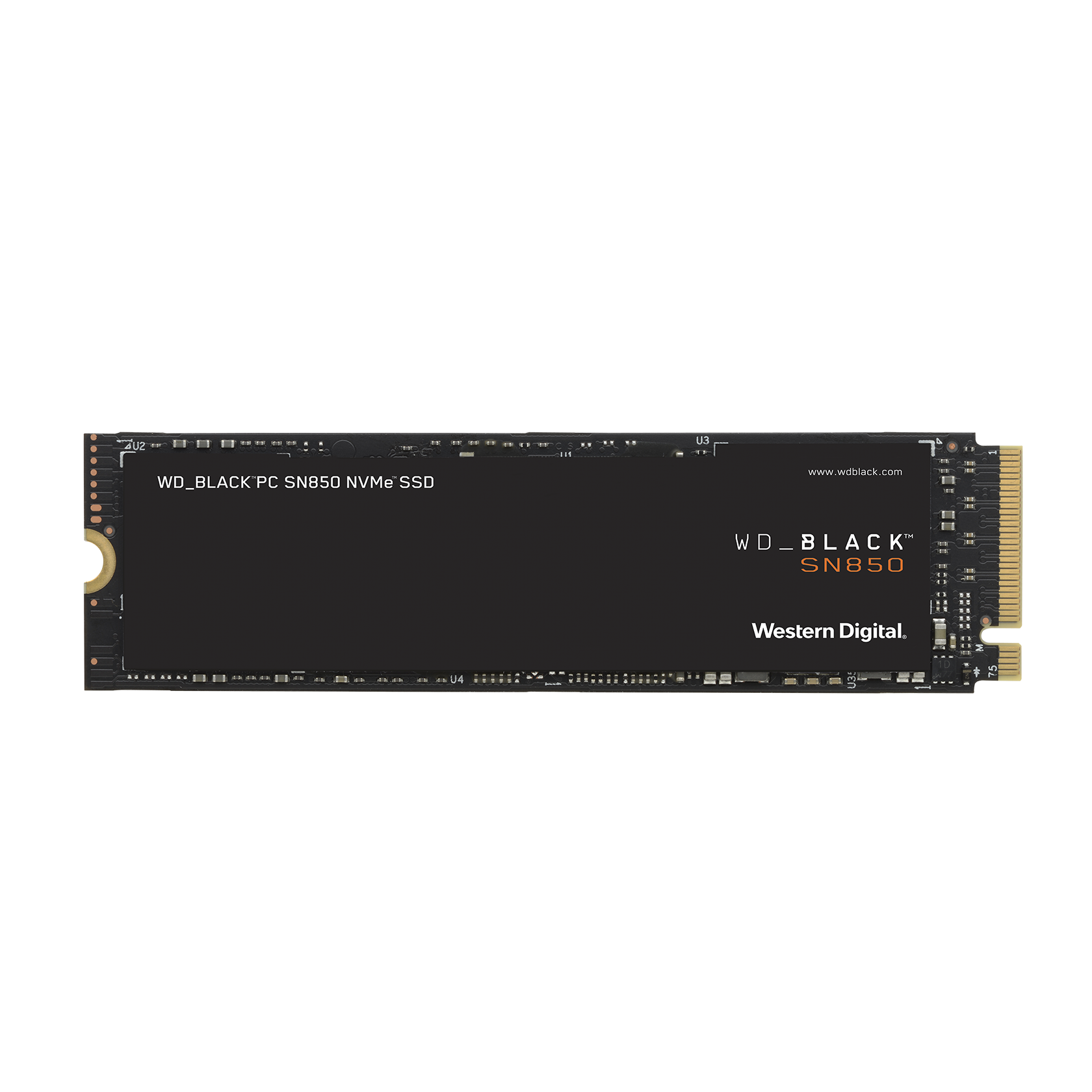
SSD Upgrades [Amazon Deals]
Upgrade your hard drive from a SATA HDD to a lightning fast SSD to drastically improve performance!