Stop Paying for PC Optimizers: Windows Already Has the Best Performance Tool Built In
Think you need a paid PC optimization program to speed up your computer? Think again. Windows already includes a powerful tool that can automate maintenance, free up storage, improve system health, and keep your PC running smoothly without spending a dime.
Many third-party "PC cleaner" and "speed booster" applications promise dramatic performance improvements, but the reality is that Windows has featured built-in maintenance tools for years. One of the most overlooked is Task Scheduler, which can automate many of the same tasks premium optimization software charges for. The concept was highlighted in a recent XDA Developers article discussing how Task Scheduler can outperform many paid optimization utilities. [xda-developers.com]
Why Most PC Optimization Software Is Unnecessary
Search for ways to speed up a Windows PC and you'll find dozens of programs claiming to:
Optimize performance
Remove junk files
Update software automatically
Monitor system health
Improve startup times
The truth is that Windows 10 and Windows 11 already include tools that handle most of these tasks natively, often more safely and reliably than third-party alternatives.
For homeowners and business users, avoiding unnecessary software can also reduce security risks, system conflicts, and unexpected subscription costs.
What Is Windows Task Scheduler?
Task Scheduler is a built-in Windows utility that allows you to automate maintenance tasks at specific times or events.
Rather than manually cleaning files, updating applications, or checking system health, Task Scheduler can perform these actions automatically in the background.
Common Automated Tasks Include:
Disk Cleanup
Application updates
Browser cache cleanup
System file integrity scans
Drive health checks
Custom PowerShell maintenance scripts
Many paid optimization suites are simply providing a graphical interface for tasks Windows can already perform itself.
Automatically Remove Temporary Files
One of the easiest maintenance tasks to automate is removing temporary files.
Windows includes the classic Disk Cleanup utility, which can clear:
Temporary system files
Update leftovers
Cache files
Error reporting files
Recycle Bin contents
According to XDA Developers, Disk Cleanup can be scheduled through Task Scheduler using the built-in cleanmgr.exe utility for recurring maintenance. [xda-developers.com]
Benefits of Regular Cleanup
Recover storage space
Prevent drive clutter
Improve system responsiveness when storage is running low
Reduce unnecessary file accumulation
While deleting temporary files won't magically double your PC's speed, maintaining healthy free storage is important for overall performance.
Clear Browser Cache Automatically
Many users overlook how much storage their web browser consumes.
Browsers such as:
Google Chrome
Microsoft Edge
Vivaldi
Brave
can accumulate gigabytes of cached files over time.
The XDA article demonstrates using a simple PowerShell script alongside Task Scheduler to remove browser cache automatically on a recurring schedule. [xda-developers.com]
Why This Helps
Frees disk space
Removes outdated cached content
Reduces unnecessary file buildup
Helps maintain storage efficiency
For most users, running cache cleanup monthly is more than sufficient.
Keep Applications Updated Automatically
Outdated applications aren't just inconvenient. They can also cause:
Security vulnerabilities
Stability issues
Compatibility problems
Windows includes Winget (Windows Package Manager), which can update many installed applications from the command line.
Task Scheduler can automate Winget updates so software stays current without requiring manual intervention.
Advantages of Automated Updates
✅ Improved security
✅ Better software stability
✅ New features and bug fixes
✅ Reduced maintenance workload
This is one area where many paid optimization programs add little value compared to Windows' native tools.
Check System Health Without Third-Party Software
Windows already includes powerful diagnostic tools that many users never use until something breaks.
Two particularly valuable commands are:
System File Checker (SFC)
sfc /scannow
This command line scans Windows system files and repairs corruption when possible.
Check Disk (CHKDSK)
chkdsk
This utility examines drive health and helps identify storage issues before they become serious problems.
Running these checks periodically can help identify potential issues before they impact system performance.
The Hidden Performance Trick Most People Miss
One of the most effective optimizations isn't creating new scheduled tasks.
It's removing unnecessary ones.
Many applications install background services and scheduled tasks that:
Check for updates constantly
Launch automatically at startup
Consume system resources
Run even when you never use them
Reviewing Task Scheduler and disabling unnecessary third-party tasks can reduce background activity and improve efficiency. XDA specifically notes that removing unneeded scheduled tasks may help reduce system load and improve overall performance.
When PC Optimizer Software Actually Makes Things Worse
As a local PC repair technician, I've seen numerous systems affected by aggressive "optimizer" software.
Common issues include:
Broken Windows settings
Deleted files that shouldn't be removed
Excessive registry cleaning
Constant pop-up notifications
Expensive yearly subscriptions
Windows is designed to manage memory, storage, and system resources effectively on its own. Adding unnecessary optimization software often creates more problems than it solves.
Best Practices for Maintaining a Fast Windows PC
Instead of relying on paid optimizer programs:
Keep Windows updated.
Remove unused software.
Run Disk Cleanup periodically.
Maintain adequate free storage space.
Monitor startup programs.
Keep applications updated.
Scan system files occasionally.
Review unnecessary scheduled tasks.
Back up important data.
Upgrade aging hardware when necessary.
These simple habits provide far greater long-term value than most optimization subscriptions.
Final Thoughts
The best PC optimization tool may already be installed on your computer.
Windows Task Scheduler allows you to automate maintenance, clean temporary files, update applications, monitor drive health, and reduce unnecessary background processes without installing expensive third-party software. As highlighted by XDA Developers, many of the features sold by paid optimization suites can already be achieved using built-in Windows tools.
If your computer still feels slow after proper maintenance, the issue may be outdated hardware, storage limitations, malware, or underlying system problems that require professional diagnosis.
Need Help Speeding Up Your Computer in Sherwood Park or Edmonton?
The PC Guy provides:
PC performance tune-ups
Windows troubleshooting
SSD upgrades
Malware removal
System optimization
Laptop and desktop repairs
Book a service today and get your PC running like new without wasting money on unnecessary optimizer software.
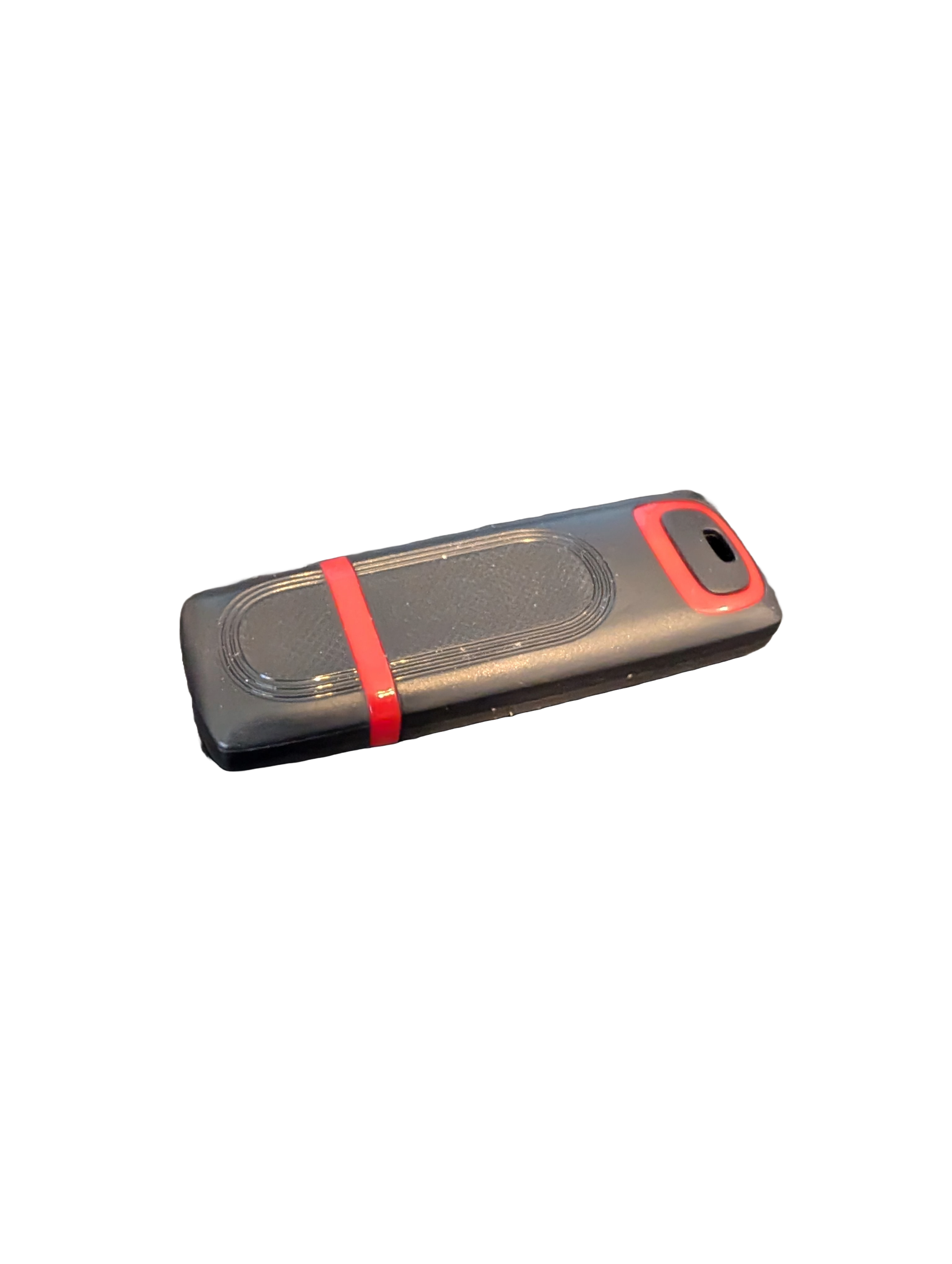
🖥️ Give Your Slow Windows PC a Fresh Boost
This plug‑and‑play Windows Computer Tune‑Up USB Drive is a complete performance‑restoration toolkit for desktops, laptops, and tablets. No installation required — simply plug it in and run the tools directly from the USB.
Perfect for speeding up slow computers, removing junk software, fixing performance issues, and cleaning malware.
🔧 What’s Included (Tools & Utilities)
Your USB drive comes preloaded with a curated suite of essential PC maintenance tools:
Windows manual update utility
Software removal & cleanup tools
Startup optimizer
Virus & malware scan/removal utilities
Disk cleanup utility
Defrag tool
Windows performance tweak utility
Registry cleanup & optimization
Note: USB brand and appearance may vary. Self‑Updating: Tools automatically stay current when connected online.
🚀 Why This Tune‑Up USB Is Better
✔ No installation required
Runs directly from the USB — ideal for damaged or slow systems.
✔ Safe, portable, and beginner‑friendly
Includes step‑by‑step instructions and a full tune‑up checklist.
✔ Works on all modern Windows PCs
Compatible with Windows desktops, laptops, and tablets.
✔ Fixes the most common PC problems
Slow startup, cluttered software, malware infections, lag, freezing, and more.
🛠️ Ideal For
Slow or aging computers
Family PCs that need regular cleanup
Students, home offices, and small businesses
Technicians who want a portable toolkit
📦 What You Get
1× Preloaded Tune‑Up USB Drive
Full instructions + tune‑up checklist
Lifetime updates to included tools
THERE IS NO GUARANTEE THIS PRODUCT WILL FIX YOUR SPECIFIC ISSUE OR IMPROVE PERFORMANCE