🚀Clear Your Windows 11 Cache — Here’s Why the Speed Boost Is Immediate
If your Windows 11 PC has been feeling sluggish lately—slow app launches, random lag, or that general “heavy” feeling—you’re not imagining it. Even well‑maintained systems can start dragging over time. I recently ran into the same issue, and after trying the usual fixes, I finally cleared my Windows 11 cache. The improvement was instant.
Here’s what happened, why it works, and how you can do it safely.
⚡ Why Clearing Your Windows 11 Cache Works
Windows 11 quietly stores a mountain of temporary files:
System logs
Update leftovers
Cached website data
Temporary app files
Over time, this clutter piles up. When it gets excessive or outdated, it can slow down your system instead of helping it. Clearing the cache wipes out this invisible junk and frees up storage—sometimes several gigabytes.
After I cleared mine, apps opened faster, the system felt lighter, and everyday tasks became noticeably smoother. It wasn’t a miracle cure, but it was absolutely a performance boost.
🧹 Are There Any Downsides?
Just one minor, temporary inconvenience:
Some apps or websites may load slower the first time afterward
You may be logged out of certain sites if browser data was cleared
Windows automatically rebuilds the cache as needed, so everything stabilizes quickly. The performance gains are worth the brief reset.
🛠️ How to Clear Cache in Windows 11 (The Safe, Built‑In Way)
Windows 11 includes two reliable tools for removing temporary files: Cleanup Recommendations and Disk Cleanup. Both are safe and built directly into the OS.
Method 1: Using Cleanup Recommendations
Open Settings
Go to System → Storage
Select Cleanup Recommendations
Review the categories:
Temporary files
Large or unused files
Cloud‑synced files
Unused apps
Select what you want to remove
Click Clean up
This tool highlights files that are safe to delete, but always double‑check your Downloads folder before confirming.
Method 2: Using Disk Cleanup
Press the Search icon
Type Disk Cleanup
Launch the tool
Review the list of removable file types
Click Cleanup system files
Confirm your selections
This classic tool still works great for clearing temporary system files, update leftovers, and more.
💡 Why This Simple Fix Matters
You don’t always need a full system overhaul to fix a slow PC. Sometimes, a quick cleanup is all it takes to restore smooth performance. After clearing my cache, the difference was immediate—enough to make me wonder why I hadn’t done it sooner.
If your Windows 11 machine feels bogged down, this is one of the easiest, safest fixes you can try.
🧰 Need Professional PC Cleanup or Optimization?
If you're in Sherwood Park or Edmonton and want a deeper, expert‑level cleanup—thermal paste refresh, malware scan, startup optimization, SSD health check—We offer full PC cleaning and performance services.
A quick tune‑up can extend your system’s life and keep it running like new.
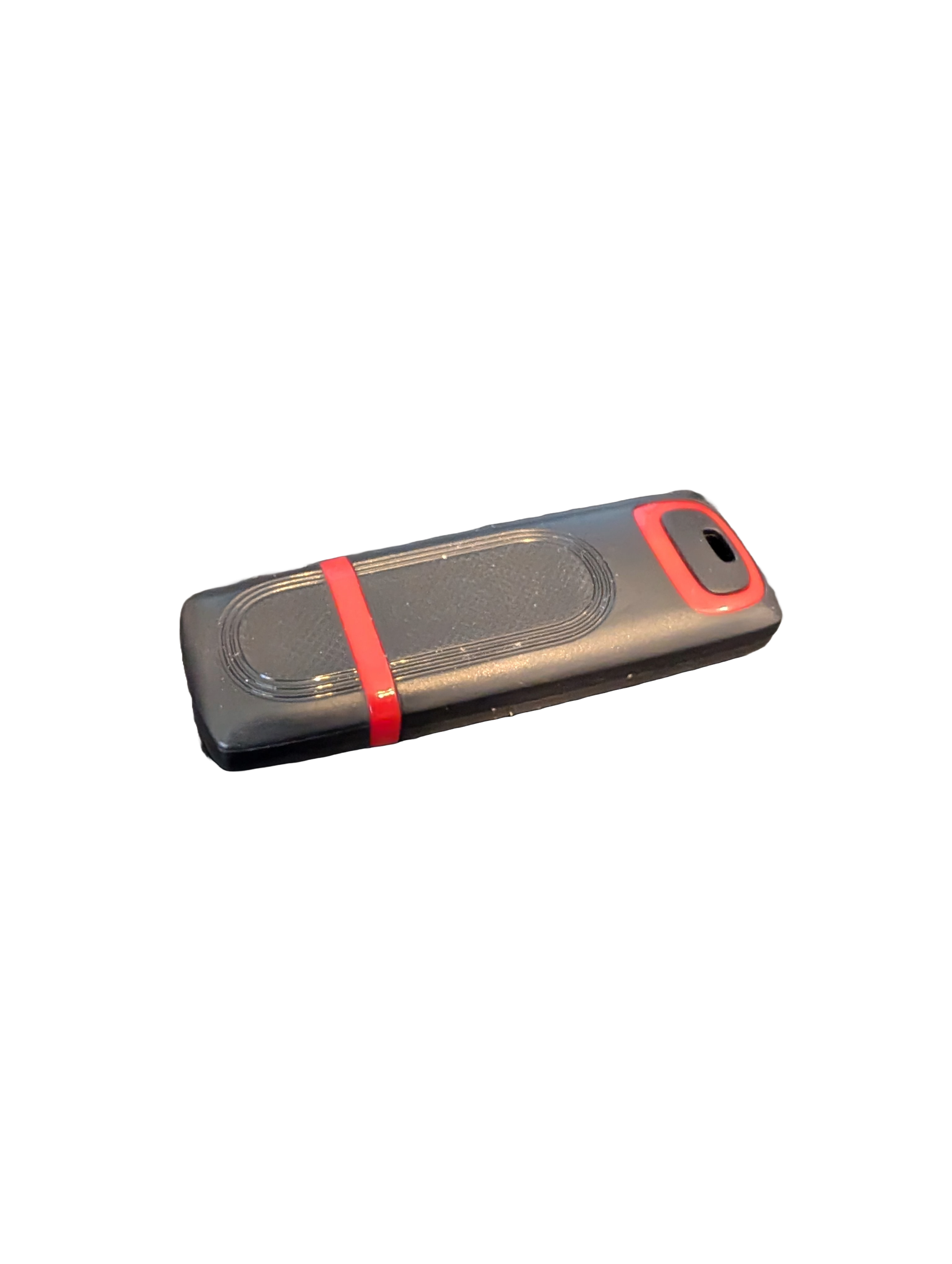
🖥️ Give Your Slow Windows PC a Fresh Boost
This plug‑and‑play Windows Computer Tune‑Up USB Drive is a complete performance‑restoration toolkit for desktops, laptops, and tablets. No installation required — simply plug it in and run the tools directly from the USB.
Perfect for speeding up slow computers, removing junk software, fixing performance issues, and cleaning malware.
🔧 What’s Included (Tools & Utilities)
Your USB drive comes preloaded with a curated suite of essential PC maintenance tools:
Windows manual update utility
Software removal & cleanup tools
Startup optimizer
Virus & malware scan/removal utilities
Disk cleanup utility
Defrag tool
Windows performance tweak utility
Registry cleanup & optimization
Note: USB brand and appearance may vary. Self‑Updating: Tools automatically stay current when connected online.
🚀 Why This Tune‑Up USB Is Better
✔ No installation required
Runs directly from the USB — ideal for damaged or slow systems.
✔ Safe, portable, and beginner‑friendly
Includes step‑by‑step instructions and a full tune‑up checklist.
✔ Works on all modern Windows PCs
Compatible with Windows desktops, laptops, and tablets.
✔ Fixes the most common PC problems
Slow startup, cluttered software, malware infections, lag, freezing, and more.
🛠️ Ideal For
Slow or aging computers
Family PCs that need regular cleanup
Students, home offices, and small businesses
Technicians who want a portable toolkit
📦 What You Get
1× Preloaded Tune‑Up USB Drive
Full instructions + tune‑up checklist
Lifetime updates to included tools
THERE IS NO GUARANTEE THIS PRODUCT WILL FIX YOUR SPECIFIC ISSUE OR IMPROVE PERFORMANCE