5 Windows 11 Features That Are Slowing Down Your PC (And How to Fix Them)
Updated for 2026 — Practical fixes for everyday Windows users
If your Windows 11 computer feels slower than it should, you’re not imagining it. Many users — especially those on budget laptops or older desktops — are noticing lag, stutters, and long startup times. While Windows 11 brings a modern interface and new AI‑powered features, it also introduces background processes that quietly drain system resources.
The good news: you can disable most of these performance‑killers in minutes. Below are the top Windows 11 features known to slow down your computer, why they cause problems, and how to turn them off for a faster, smoother experience.
1. Startup Apps: The Hidden Reason Your PC Crawls at Boot
Windows 11 makes it easy for apps to automatically launch when your computer starts — sometimes too easy. Many programs enable this by default, even when they don’t need to run in the background.
Why it slows your PC: Every enabled startup app consumes RAM and CPU cycles the moment Windows loads, creating instant bottlenecks.
How to fix it:
Press CTRL + Shift + Esc to open Task Manager
Select Startup Apps
Sort by Status
Disable anything you don’t need running 24/7
Even high‑end systems benefit from trimming this list.
2. Widgets & News Feed: Pretty, But Pointless (and CPU‑Hungry)
Windows 11 reintroduced widgets — weather, sports scores, news, and more — but the feature is notoriously sluggish and often filled with low‑value content.
Why it slows your PC: The widget panel has a documented history of hogging CPU resources, even when it’s not open.
How to disable it: Right‑click the taskbar → Taskbar Settings → Toggle off Widgets
This alone can noticeably reduce background CPU usage.
3. OneDrive Syncing: Constant Background Activity
Windows 11 deeply integrates OneDrive, encouraging users to sync files to Microsoft’s cloud. But OneDrive’s background syncing is heavier than alternatives like Google Drive or Dropbox.
Why it slows your PC: Continuous file monitoring and syncing create unnecessary system bloat, especially on low‑RAM systems. Microsoft even acknowledged performance issues tied to OneDrive syncing.
Best fix: Uninstall OneDrive entirely if you don’t use it. You’ll also want to unlink your account for a complete removal.
4. Visual Effects & Animations: Style Over Speed
Windows 11’s “Fluid 2” design includes animations, transparency, and visual flourishes that look great — but cost performance.
Why it slows your PC: Animations take time to complete and consume GPU/CPU resources. Transparency effects also increase RAM usage.
How to speed things up:
Open Settings
Search for Performance
Select Adjust the appearance and performance of Windows
Choose Adjust for best performance or disable individual effects
This is one of the fastest ways to make Windows feel snappier.
5. Windows Recall: A Heavy, Controversial AI Feature
Available only on Copilot+ PCs, Windows Recall takes screenshots every few seconds to create a searchable history of your activity.
Why it slows your PC: Constant screen capturing consumes CPU, RAM, and storage — especially on low‑end hardware. It also raised major privacy concerns when first released.
How to disable it: Search “Turn Windows features on or off” → Uncheck Recall
Most users should leave this feature off.
Final Thoughts: Small Tweaks, Big Speed Gains
Windows 11 isn’t inherently slow — but several built‑in features create unnecessary drag. Disabling the five items above can dramatically improve:
Boot times
App responsiveness
Background CPU usage
Overall system stability
If you’re in Sherwood Park or Edmonton and your PC still feels sluggish after trying these fixes, it may be time for a deeper cleanup or hardware tune‑up.
Local Support: Professional PC Cleaning & Optimization (Sherwood Park / Edmonton)
If you want your computer running like new, I offer:
Full Windows optimization
Startup & background service cleanup
Malware removal
Thermal cleaning & repasting
SSD upgrades and data migration
Personalized performance tuning
Fast, local, and affordable. Reach out anytime to book a service.
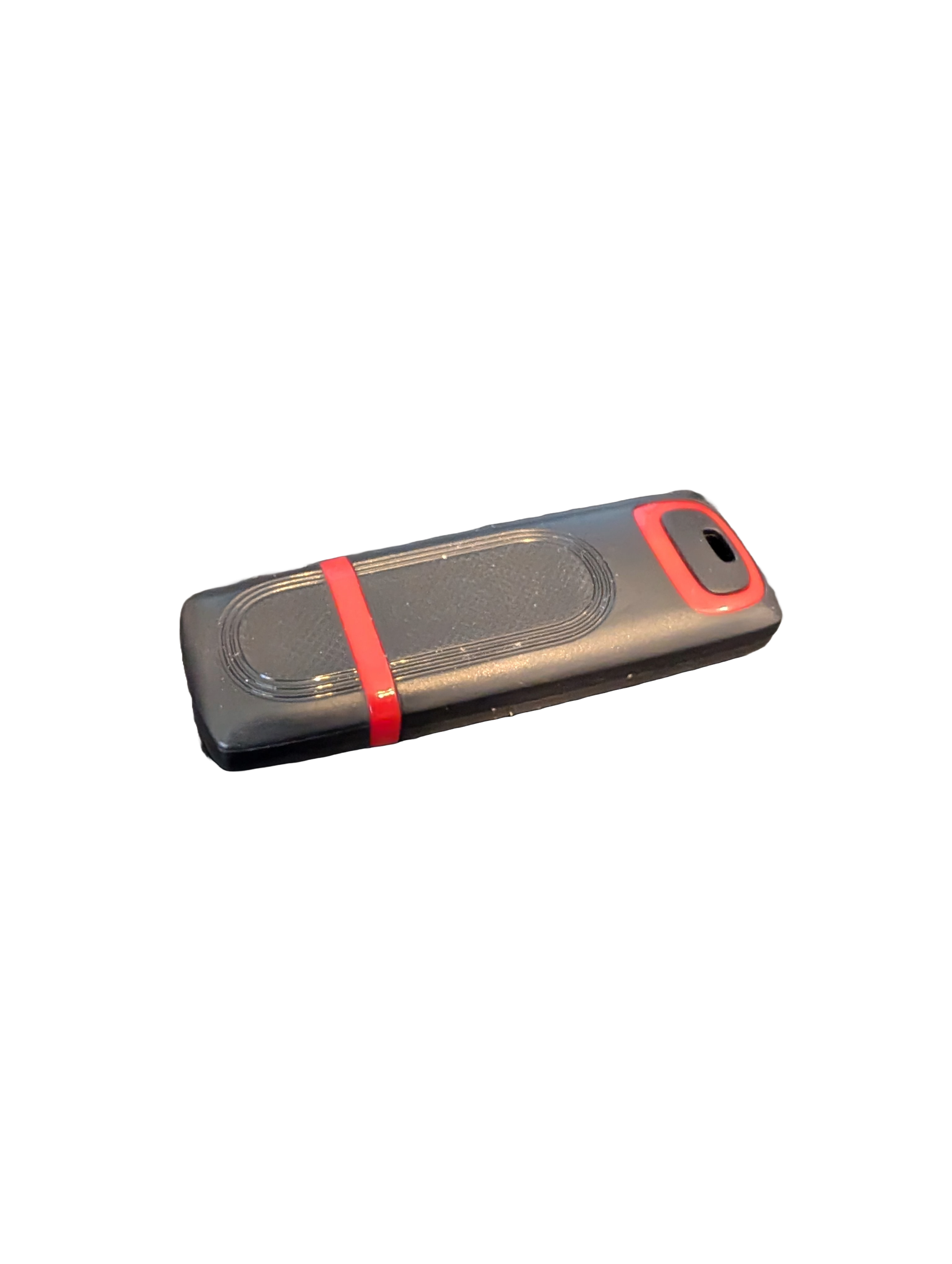
🖥️ Give Your Slow Windows PC a Fresh Boost
This plug‑and‑play Windows Computer Tune‑Up USB Drive is a complete performance‑restoration toolkit for desktops, laptops, and tablets. No installation required — simply plug it in and run the tools directly from the USB.
Perfect for speeding up slow computers, removing junk software, fixing performance issues, and cleaning malware.
🔧 What’s Included (Tools & Utilities)
Your USB drive comes preloaded with a curated suite of essential PC maintenance tools:
Windows manual update utility
Software removal & cleanup tools
Startup optimizer
Virus & malware scan/removal utilities
Disk cleanup utility
Defrag tool
Windows performance tweak utility
Registry cleanup & optimization
Note: USB brand and appearance may vary. Self‑Updating: Tools automatically stay current when connected online.
🚀 Why This Tune‑Up USB Is Better
✔ No installation required
Runs directly from the USB — ideal for damaged or slow systems.
✔ Safe, portable, and beginner‑friendly
Includes step‑by‑step instructions and a full tune‑up checklist.
✔ Works on all modern Windows PCs
Compatible with Windows desktops, laptops, and tablets.
✔ Fixes the most common PC problems
Slow startup, cluttered software, malware infections, lag, freezing, and more.
🛠️ Ideal For
Slow or aging computers
Family PCs that need regular cleanup
Students, home offices, and small businesses
Technicians who want a portable toolkit
📦 What You Get
1× Preloaded Tune‑Up USB Drive
Full instructions + tune‑up checklist
Lifetime updates to included tools
THERE IS NO GUARANTEE THIS PRODUCT WILL FIX YOUR SPECIFIC ISSUE OR IMPROVE PERFORMANCE