Windows Storage Sense: The Built‑In Cleanup Tool You’re Not Using Properly
If your Windows PC keeps running out of space, slowing down, or refusing to install updates, you’re not alone. Modern Windows systems accumulate gigabytes of junk—temporary files, old installers, cached data, and forgotten downloads.
The good news? Windows includes an automatic cleanup tool called Storage Sense. The bad news? Its default settings are almost useless and leave most of your clutter untouched.
This guide shows you how Storage Sense really works, why the defaults fail, and how to configure it properly so your PC stays fast, clean, and clutter‑free.
⭐ What Is Storage Sense?
Storage Sense is Microsoft’s modern replacement for the old Disk Cleanup utility. It automatically removes:
Temporary system files
Recycle Bin contents
Old downloads (if configured)
Locally stored OneDrive files you haven’t opened recently
You’ll find it under: Settings → System → Storage → Storage Sense
⚠️ Why the Default Settings Don’t Work
Out of the box, Storage Sense barely does anything. Here’s what’s wrong:
1. It only runs when your disk is nearly full
The default schedule is “During low free disk space.” By the time it activates, your PC is already struggling.
2. It ignores your Downloads folder
Every PDF, ZIP file, installer, and screenshot piles up forever unless you manually change the setting.
3. It won’t manage OneDrive content
Storage Sense can free space by making old cloud files “online‑only,” but this is also disabled by default.
4. Recycle Bin cleanup is limited
It deletes files older than 30 days—but only when the drive is already full.
In short: Storage Sense is powerful, but Microsoft ships it in a nearly dormant state.
⚙️ How to Properly Configure Storage Sense (Takes 2 Minutes)
1. Turn it on
Go to: Settings → System → Storage → Storage Sense Toggle it ON.
2. Change the cleanup schedule
Set Run Storage Sense to: ➡️ Every week Daily is overkill; monthly lets too much junk accumulate.
3. Adjust Recycle Bin cleanup
Choose how long deleted files stay before being removed:
14 days (good for heavy users)
30 days (balanced default)
60 days (light usage)
4. Configure Downloads cleanup
Before enabling this, move anything important out of Downloads. Then set: ➡️ Delete files not opened for 60 days This keeps clutter under control without being too aggressive.
5. Optimize OneDrive local storage
If your OneDrive dropdown is set to Never, change it to: ➡️ 30 days This frees local space while keeping files accessible in the cloud.
🧹 What Storage Sense Still Won’t Clean
Even with perfect settings, Storage Sense won’t touch:
Browser caches
App‑specific temp files (Teams, Discord, Spotify, etc.)
Windows Update leftovers
Previous Windows installations (Windows.old)
For deeper cleanup, you’ll still need:
Disk Cleanup (cleanmgr.exe)
Settings → Storage → Temporary files → Cleanup system files
Manual clearing of %TEMP%
💡 Final Thoughts: Storage Sense Isn’t Broken—Just Misconfigured
Storage Sense is a powerful, built‑in maintenance tool that can keep your PC running smoothly—but only if you configure it properly. With a few quick tweaks, it becomes a reliable weekly cleanup system that prevents slowdowns, update failures, and storage headaches.
Pair it with occasional manual cleanup of browser caches and temporary files, and your Windows machine will stay fast, tidy, and trouble‑free.
Need a Faster, Cleaner, More Reliable PC? I Can Help.
If your computer is still running slow—even after tweaking Storage Sense—there’s a good chance it needs a deeper cleanup or professional tune‑up. I help Sherwood Park and Edmonton‑area residents speed up their PCs, remove hidden junk, fix Windows issues, and get their systems running like new again.
Book a cleanup or troubleshooting session today and give your PC the fresh start it deserves.
→ Contact The PC Guy.ca to schedule your service
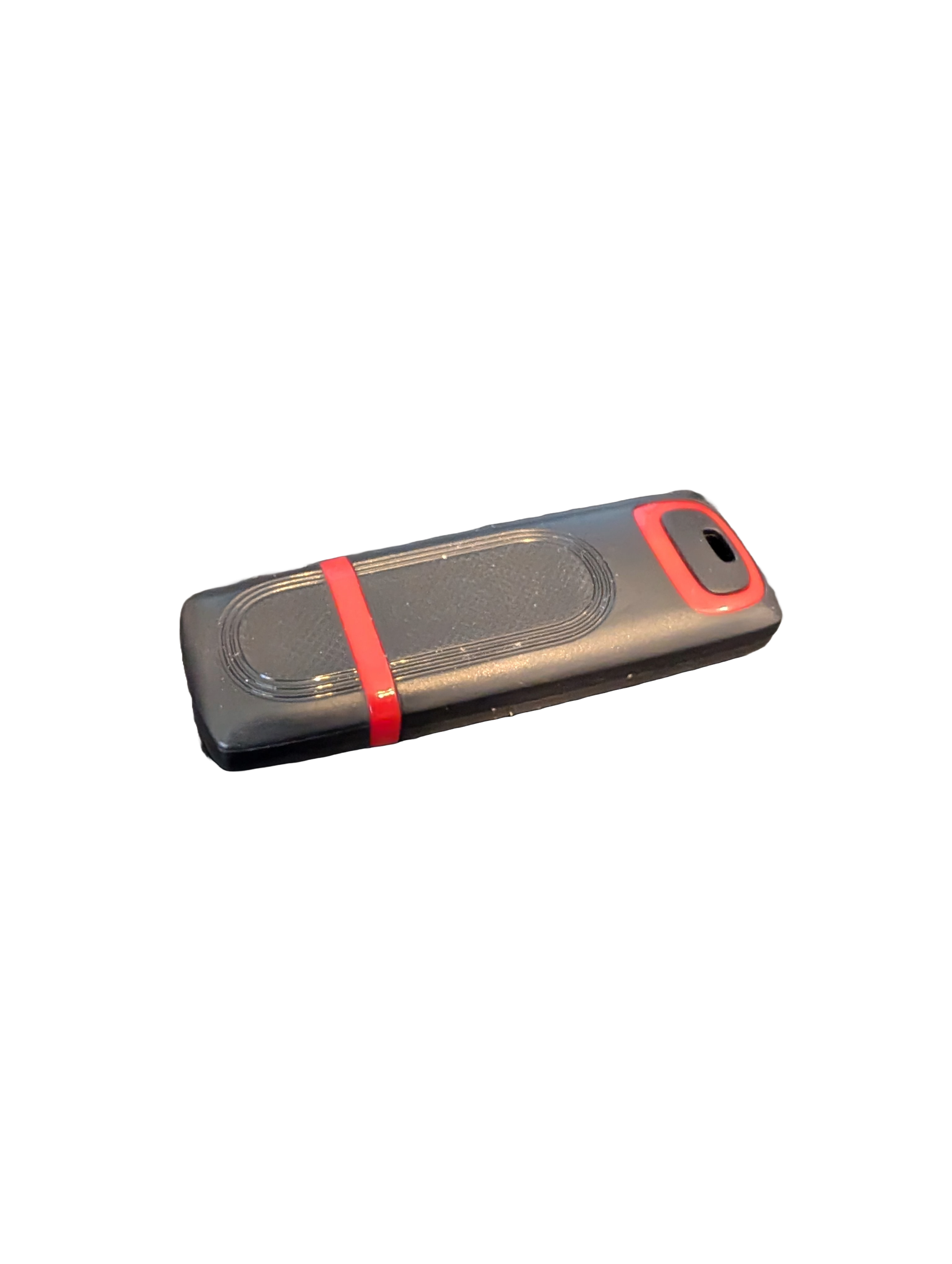
🖥️ Give Your Slow Windows PC a Fresh Boost
This plug‑and‑play Windows Computer Tune‑Up USB Drive is a complete performance‑restoration toolkit for desktops, laptops, and tablets. No installation required — simply plug it in and run the tools directly from the USB.
Perfect for speeding up slow computers, removing junk software, fixing performance issues, and cleaning malware.
🔧 What’s Included (Tools & Utilities)
Your USB drive comes preloaded with a curated suite of essential PC maintenance tools:
Windows manual update utility
Software removal & cleanup tools
Startup optimizer
Virus & malware scan/removal utilities
Disk cleanup utility
Defrag tool
Windows performance tweak utility
Registry cleanup & optimization
Note: USB brand and appearance may vary. Self‑Updating: Tools automatically stay current when connected online.
🚀 Why This Tune‑Up USB Is Better
✔ No installation required
Runs directly from the USB — ideal for damaged or slow systems.
✔ Safe, portable, and beginner‑friendly
Includes step‑by‑step instructions and a full tune‑up checklist.
✔ Works on all modern Windows PCs
Compatible with Windows desktops, laptops, and tablets.
✔ Fixes the most common PC problems
Slow startup, cluttered software, malware infections, lag, freezing, and more.
🛠️ Ideal For
Slow or aging computers
Family PCs that need regular cleanup
Students, home offices, and small businesses
Technicians who want a portable toolkit
📦 What You Get
1× Preloaded Tune‑Up USB Drive
Full instructions + tune‑up checklist
Lifetime updates to included tools
THERE IS NO GUARANTEE THIS PRODUCT WILL FIX YOUR SPECIFIC ISSUE OR IMPROVE PERFORMANCE